![MO-Icon-WEB-3.png]](https://support.meetingone.com/hs-fs/hubfs/MO-Icon-WEB-3.png?height=40&name=MO-Icon-WEB-3.png)
If you try to enable your camera from the Connect room and you see the following error message, you have probably chosen at some point, intentionally or not, to Block your camera from this browser.

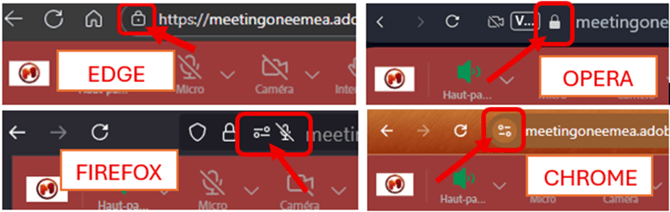
To reactivate your camera in your browser, click on the following in its URL bar, specifically to the left of the Adobe Connect room address:
- the 'lock' icon for browsers such as Edge and Opera,
- the 'site information/permissions' icon  for browsers such as Firefox and Google Chrome.
This will reveal your privacy settings for this domain – showing your currently blocked camera.
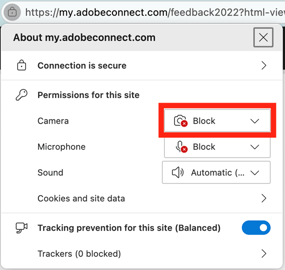
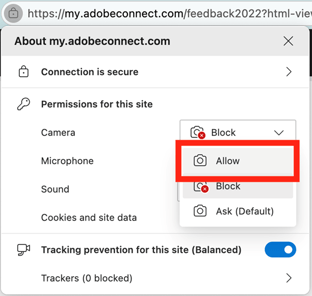
For each browser, the procedure will be roughly the same: you'll need to change the camera's Block setting to Allow,
- via a drop-down menu, as in Edge,
- via a toggle button, as in Opera and Google Chrome,
- in Firefox, by clicking the 'cross' to simply remove the '... Blocked 'setting so that the user is prompted to Allow or Block the camera again the next time they click the Camera button in Adobe Connect.
If necessary, click the X in the top right corner of the permissions dialog box to close it.
Except in Firefox where the session does not need to be reloaded, in most cases you will be prompted to refresh your browser – click the Refresh button.
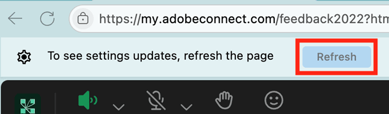
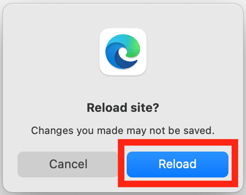
Next click the Reload button to reload the meeting in your browser.
You will then be taken back to the entry screen you saw when originally joining the Connect meeting. You will now be able to rejoin the meeting with the ability to share your camera.